Quick start
This guide takes a model through Cats from import to an FBX you can drop into Unity. It assumes Cats is installed and the CATS tab is open in the 3D Viewport sidebar (N).
Which kind of model do you have?
Section titled “Which kind of model do you have?”The path depends on where the model comes from:
A model straight from MMD, VRM, XNALara or a game, with its original bones and physics. It needs the full treatment, including Fix MMD Model.
An avatar already rigged for Unity and VRChat. Do not run Fix MMD Model on it: it would rename and delete bones the avatar relies on. Skip step 2 and use Cats for optimization, visemes and export.
From import to export
Section titled “From import to export”-
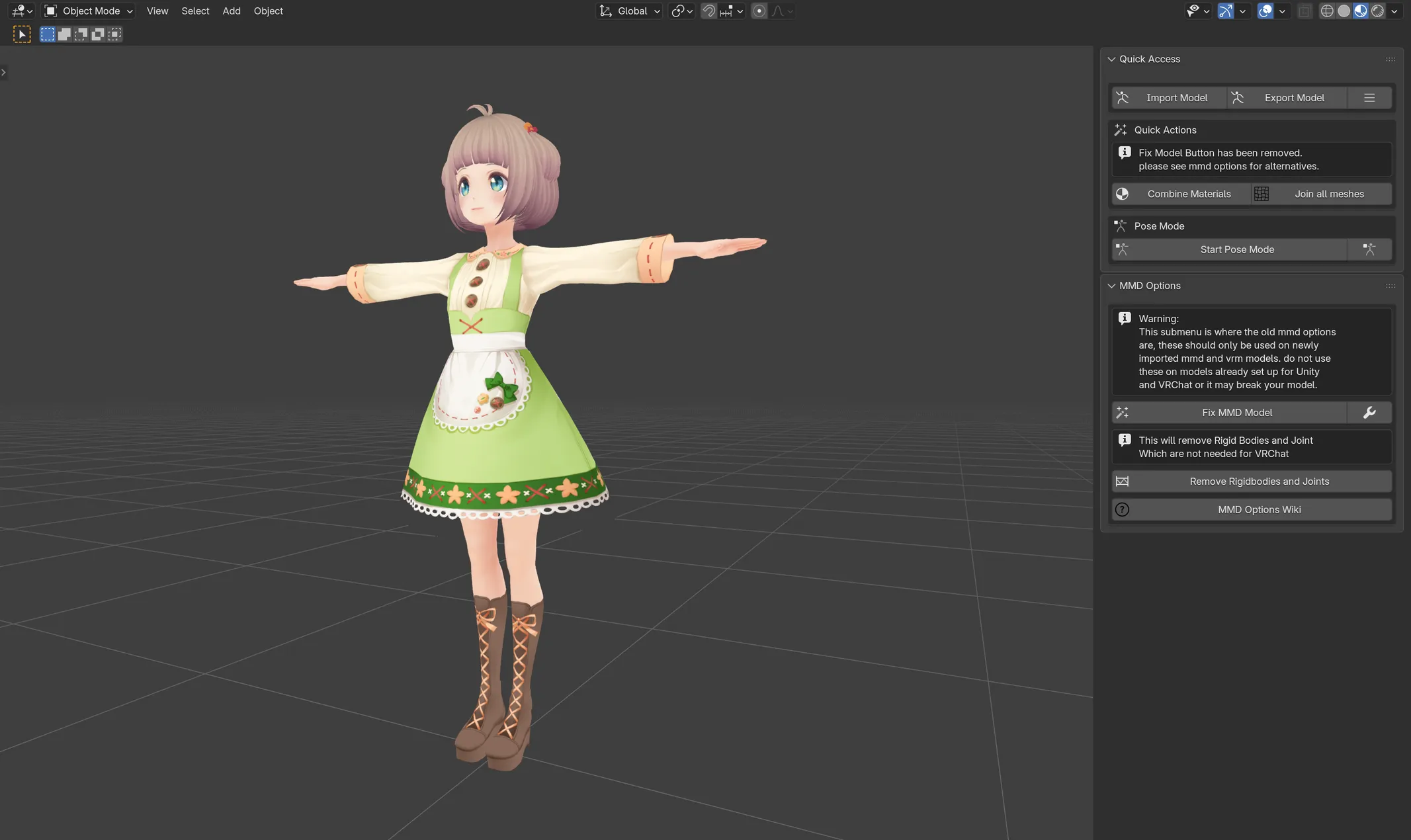
Import the model. In Quick Access, click Import Model and pick the file:
.pmx,.vrm,.fbx,.xps, a.zip, and so on. Always import through Cats: Fix MMD Model expects the result of its own importer. -
Fix it (raw imports only). Open MMD Options and click Fix MMD Model. Cats translates and renames the bones onto a standard skeleton, merges helper bones, joins the meshes, cleans the shape keys and removes MMD physics. Check the result in Pose mode (step 6).
-
Translate what is left. If materials, objects or shape keys still have Japanese names, click All under Translate in Other Options.
-
Optimize. In Optimization:
- Click Combine Same Materials to merge identical materials.
- If more than four materials remain, build an atlas with Material Combiner in Atlas Generation.
- Make sure the model is a single mesh, or two at most: Join Meshes > All.
- Reduce physics bones with Merge Bones if you have many hair or skirt chains.
-
Add lip sync. In Visemes, pick three mouth shapes and click Create Visemes to get the fifteen
vrc.v_*shape keys. -
Check how it moves. In Quick Access, click Start Pose Mode and rotate a few bones: arms, legs, head, fingers. Click Stop Pose Mode when you are done.
-
Prepare the eyes. For VRChat, open Eye Tracking, pick both eye bones under SDK3 Eye Tracking and click Rotate eye bones. The rest of eye tracking is set up in Unity.
-
Export. In Quick Access, click Export Model, then Export Model again in the popup. Read any warning Cats shows about polygons, materials or meshes: each one tells you what VRChat will complain about. Save the FBX.
In Unity
Section titled “In Unity”Drop the FBX into your Unity project, set the rig to Humanoid in the import settings, and add the VRChat avatar descriptor. Because Cats named the bones and shape keys the way Unity and the VRChat SDK expect, the humanoid mapping and the viseme auto-detect should fill in on their own.
Something went wrong? See Troubleshooting.