MMD Options
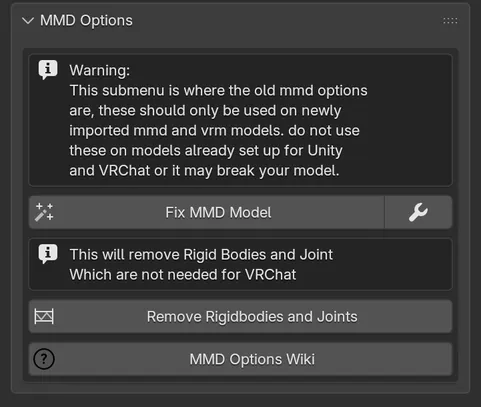
MMD Options holds the tools for models that come straight out of an importer: Fix MMD Model, its settings, and a button to remove rigid bodies and joints. The panel starts collapsed.
Fix MMD Model
Section titled “Fix MMD Model”Fix MMD Model is the main pass of Cats. It takes the bones, meshes and shape keys an importer produced and turns them into a standard humanoid rig that Unity recognises. It used to be the Fix Model button at the top of the CATS tab; that button has moved here.
Before you run it
Section titled “Before you run it”- Import the model with Import Model in Quick Access. The add-on warns that models brought in another way can crash Blender during the fix.
- Keep the meshes parented to the armature. If they are not, Cats stops with No mesh inside the armature found!
- Make sure no mesh shares its data with another object. Otherwise Cats stops and asks you to run Object > Relations > Make Single User first.
- Rigify and metarig armatures are not supported. Use a Rigify-to-Unity tool instead.
Run it
Section titled “Run it”-
Open MMD Options. If you want to change what the fix does, click the small settings button next to Fix MMD Model and adjust the options described below.
-
Click Fix MMD Model, read the confirmation and click OK.
-
Wait for Model successfully fixed. On a large model it takes a few seconds.
If some main bones could not be found, Cats shows a list titled The following bones were not found: at the end. The fix still completes, but the model will likely need manual work in those areas.
What it changes
Section titled “What it changes”In order, Fix MMD Model:
- Checks the model and warns about locked transforms, meshes without vertex groups, broken UV coordinates, or missing hips, spine, neck or head.
- Turns MMD bone morphs into shape keys, so expressions made with bones survive in Unity.
- Cleans the scene: removes rigid bodies and joints, non-mesh children of the armature, the MMD root Empty, and Blender’s default cube, camera and light. Source Engine physics and LOD meshes go too.
- Joins the meshes into one, if Join Meshes is on, and applies all transforms.
- Cleans shape keys: removes keys identical to Basis and keys starting with
mmd_, then sorts them so thevrc.*keys come right after Basis. - Translates bone names to English, using the built-in dictionary first and Google Translate for the rest.
- Renames bones onto a standard skeleton: Hips, Spine, Chest, Upper Chest, Neck, Head, shoulders, arms, elbows, wrists, legs, knees, ankles, toes, eyes and fingers. It knows hundreds of aliases from MMD, Mixamo, Source Engine, DAZ and other rigs.
- Rebuilds the hierarchy: Hips becomes the root, the spine is rebuilt as Spine, Chest and (if kept) Upper Chest, a Neck is added if missing, and the hips are moved between the legs.
- Merges weights: the weights of MMD helper bones (Center, Groove, Waist, IK and dummy bones, extra spine and twist bones) are added to the bone that stays, then those helper bones are deleted.
- Removes every bone constraint, puts all bones in a single
Bonescollection and resets the pose. - Tidies up: removes zero-weight bones and connects bone chains if those options are on, renames the armature object to
Armature, and flips the model if it came in upside down.
It also sets the viewport clip range, turns on backface culling and switches the scene’s view transform to Standard, so what you see matches Unity more closely.
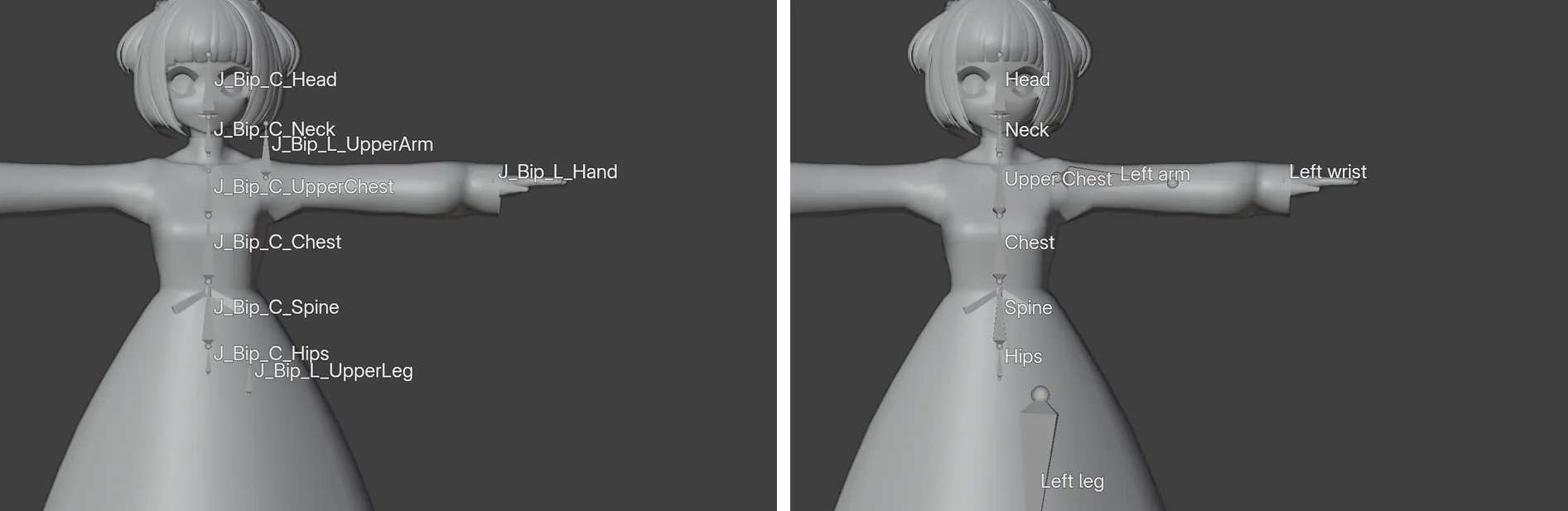
A few of the aliases Cats recognises, from the add-on’s bone lists:
| Becomes | Found in imports |
|---|---|
Hips |
Mixamorig_Hips, Bip_Pelvis, LowerBody, B_C_Pelvis |
Spine |
Mixamorig_Spine, UpperBody, Upper_Waist, UpperBody2 |
Head |
Mixamorig_Head, Bip_Head, J_Bip_C_Head, B_C_Head |
Fix Model Settings
Section titled “Fix Model Settings”The settings button next to Fix MMD Model opens this dialog. Changes apply as soon as you tick a box; OK just closes it.
| Setting | Default | What it does |
|---|---|---|
| Keep End Bones | Off | Keeps the last bone of each chain from being deleted as a zero-weight bone. Helps skirts with physics bones and can fix crumpled finger bones in Unity. Only has an effect when Remove Zero Weight Bones is on. |
| Keep Upper Chest | On | Keeps the Upper Chest bone, which VRChat supports. Turn it off only for the legacy SDK2 system: Upper Chest is then merged into Chest. |
| Keep Twist Bones | Off | Keeps every bone with “Twist” in its name. You can rename bones you want to protect to include “Twist”. |
| Fix MMD Twist Bones | On | Keeps MMD arm twist bones named ArmTwist[1-3]_[L/R] and HandTwist[1-3]_[L/R] so VRChat can use them. |
| Join Meshes | On | Joins all meshes of the model into one. You should almost always leave this on. |
| Connect Bones | On | Points each bone at its only child. Purely cosmetic: it does not change how the bones work. |
| Remove Zero Weight Bones | On | Deletes bones that move no vertices. Main humanoid bones and Root_ bones are always kept. Turn it off if bones you need disappear. |
| Remove Rigidbodies and Joints | On | Deletes MMD physics objects, which VRChat does not use. |
The dialog is drawn greyed out while Remove Zero Weight Bones is off. The other boxes still work.
Remove Rigidbodies and Joints
Section titled “Remove Rigidbodies and Joints”MMD models carry rigid bodies and joints for MMD’s own physics simulation. VRChat does not use them. This button deletes every object under the model whose name contains rigidbodies or joints, and reports Removed rigidbodies and joints. Fix MMD Model already does this when its matching setting is on.
MMD Options Wiki
Section titled “MMD Options Wiki”The last button opens the upstream project’s wiki page about these options.