Other Options
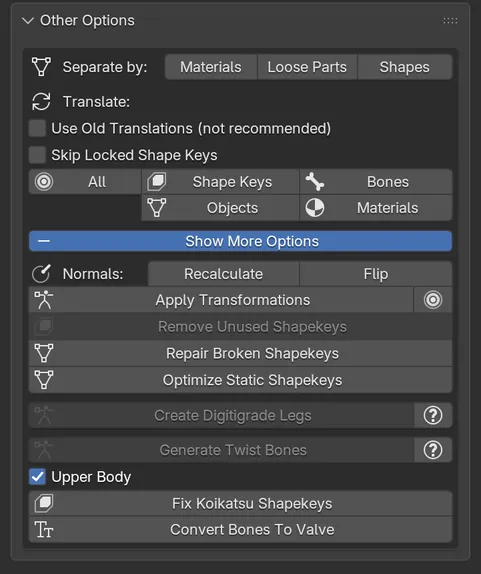
Other Options gathers tools that do not fit elsewhere. The panel starts collapsed, and a Show More Options toggle reveals a second set of tools.
Separate by
Section titled “Separate by”Splits the active mesh, or the model’s only mesh:
- Materials makes one mesh per material.
- Loose Parts makes one mesh per disconnected piece, for finer control.
- Shapes splits the mesh in two: the part moved by shape keys, and the rest. Handy before decimating by hand, since you can then decimate the static part without touching the face.
Translate
Section titled “Translate”MMD models usually come with Japanese names. These buttons translate them to English:
- All translates bones, shape keys, objects and materials, in that order.
- Shape Keys, Objects, Bones and Materials translate one kind of name.
Cats looks names up in its built-in dictionary first, then sends what is left to Google Translate. Google results are cached on your computer, so the same name is only sent once. Bones and shape keys are translated on every armature and mesh in the file, not only the selected model. Shape keys that start with vrc. are never touched.
Two options change how shape keys are translated:
- Use Old Translations (not recommended) skips the dictionary and only uses Google, like Cats 0.9.0 and older. Only use it if you have animations that rely on the old names.
- Skip Locked Shape Keys leaves alone the shape keys you locked with the lock icon in Blender’s shape key list.
If Google cannot be reached or blocks you for a while, Cats still applies its dictionary and reports that some parts could not be translated. Try again later for the rest. You can clear the cache in Settings & Updates.
Show More Options
Section titled “Show More Options”Normals
Section titled “Normals”- Recalculate makes the normals of the active mesh point outward again. Use it when some faces look inverted or darker. Do not use it on meshes that already look right.
- Flip reverses every normal, for meshes that are entirely inside out.
Transforms
Section titled “Transforms”Apply Transformations applies location, rotation and scale to the armature and its meshes. The small button next to it applies them to every object in the scene.
Shape keys
Section titled “Shape keys”- Remove Unused Shapekeys deletes the shape keys of the active mesh that move no vertex.
vrc.v_silis always kept. The mesh must be selected, in Object mode. - Repair Broken Shapekeys tries to fix shape keys damaged by some Blender operations.
- Optimize Static Shapekeys moves the part of the mesh that shape keys affect into its own mesh, and removes shape keys from the rest, which is renamed
Static. This lowers the GPU cost of the avatar. Join your meshes first: Cats refuses to run on several meshes. - Fix Koikatsu Shapekeys repairs the shape keys of models from Koikatsu.
The shape key menu in Blender’s Object Data properties also gains two entries from Cats: Apply Selected Shapekey to Basis, which bakes the selected key into the Basis and keeps a reverted copy, and Remove Unused Shapekeys.
- Create Digitigrade Legs turns a leg into a digitigrade one, for animal-like avatars. Select two bones in Edit mode first; the How to use link opens a tutorial.
- Generate Twist Bones adds twist bones to the selected bones and splits their weights. Upper Body also covers the spine and neck.
- Convert Bones To Valve renames the main bones to Source Engine names. The model needs the standard names from Fix MMD Model first.