Quick Access
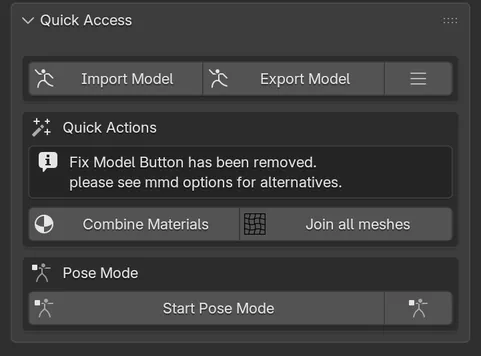
Quick Access is the panel at the top of the CATS tab, and the only one open by default. It gathers what you use on every model: importing, exporting, two quick optimizations and pose mode.
When an update is available, a notice with Update Now, Remind me later and Ignore this version also appears at the top of this panel.
Import Model
Section titled “Import Model”Import Model opens a file browser that accepts every format Cats knows. You can select several files at once.
| Format | Extensions | Imported with |
|---|---|---|
| MMD | .pmx, .pmd |
The MMD Tools importer bundled with Cats, at scale 0.08 |
| XNALara | .xps, .mesh, .ascii |
The XPS Tools add-on, which you install separately |
| Source Engine | .smd, .qc, .qci, .vta, .dmx |
Blender Source Tools, which you install separately |
| FBX | .fbx |
Blender’s FBX importer, with automatic bone orientation and animation off |
| VRM | .vrm |
The VRM add-on, which you install separately |
| Archive | .zip |
Cats extracts the zip next to itself and imports the model inside. If there are several, it asks which one. |
The importer also accepts .dae, but that goes through Blender’s own COLLADA importer: if your Blender build does not include it, DAE files will not import.
When a format needs an add-on you do not have, Cats shows a dialog such as XPS Tools is not installed or enabled! with a button that opens its download page.
Before importing, Cats deletes Blender’s default cube, camera and light, but only when all three are still in the scene. After importing, the new armature becomes the one Cats works on.
The small menu button next to Import Model opens a popup with one button per format, plus two ways to import an MMD animation (.vmd) onto the current armature.
Export Model
Section titled “Export Model”Export Model appears once the scene has an armature. It opens a popup with two choices:
- Export Model writes an FBX for Unity with the settings VRChat needs.
- Export for Resonite opens Blender’s glTF exporter, set up for Resonite.
Checks before export
Section titled “Checks before export”Before writing the FBX, Cats looks at the visible meshes of the model. If something looks wrong, a Warning: dialog explains it, and you can fix it or click Continue to Export.
| Warning | When |
|---|---|
| Too many polygons! | More than 70,000 faces. Decimate before exporting. |
| Model not optimized! | More than 4 materials. See Optimization to combine them or build an atlas. |
| Meshes not joined! | More than 2 meshes. The dialog has a Join Meshes button. |
| Broken shapekeys! | A shape key has vertices moved absurdly far. VRChat will refuse the upload until you delete or repair it. |
| No textures found! | Embed Textures on Export is on but the model has no materials. You will import textures in Unity by hand. |
| Eyes not named ‘Body’! | A mesh has eye tracking shape keys but is not named Body. Rename it if you use legacy eye tracking. |
FBX settings Cats uses
Section titled “FBX settings Cats uses”You do not have to set anything in Blender’s FBX exporter. Cats uses:
- Object types: Empty, Armature, Mesh and Other.
- Apply Scalings set to FBX All.
- Add Leaf Bones off, Bake Animation off, Apply Modifiers off.
- Textures embedded when Embed Textures on Export is on in Settings & Updates.
It exports the whole scene, not only the selection, so hide or delete anything you do not want in Unity.
Quick Actions
Section titled “Quick Actions”Two shortcuts to tools that also live in Optimization:
- Combine Materials merges materials that are identical, reducing draw calls without changing how the avatar looks.
- Join all meshes joins every mesh parented to the armature into one, applies transforms, renames the first UV map to
UVMap, repairs the Armature modifier and names the resultBody.
The box also carries a note: Fix Model Button has been removed. It now lives in MMD Options as Fix MMD Model.
Pose Mode
Section titled “Pose Mode”Test how the model moves without leaving the CATS tab.
- Start Pose Mode switches the armature to Pose mode, resets every bone and shape key, and selects the rotate tool. The small button next to it does the same without resetting the current pose.
- Stop Pose Mode goes back to Object mode and resets the pose. Its small twin keeps the pose.
While in Pose mode, two more buttons appear:
- Pose to Shape Key asks for a name and saves the current pose as a new shape key on every mesh. Useful for building expressions or corrective shapes.
- Apply as Rest Pose bakes the current pose into the meshes, including their shape keys, and makes it the armature’s new rest pose. Use it to fix a model that was imported in an A-pose you do not want.
Armature
Section titled “Armature”If the scene holds more than one armature, an Armature dropdown appears. Every Cats tool works on the armature selected there, not on the active object.