Optimization
VRChat ranks avatars by how much they cost to render: mostly materials, meshes and bones. The Optimization panel has three sections, all open once you expand the panel: Atlas Generation, Material Operations and Bone Merging.
Atlas Generation
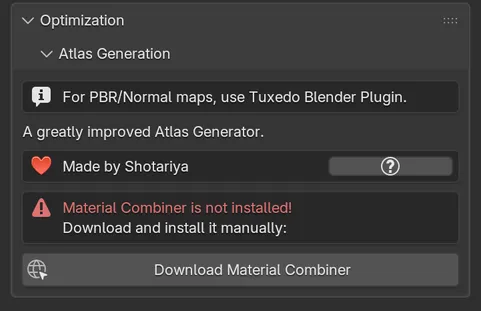
Section titled “Atlas Generation”An atlas packs the textures of several materials into one image, so the whole avatar can use one or two materials. Cats does not build atlases itself: it shows the interface of Material Combiner, a separate add-on by Shotariya.
Set up Material Combiner
Section titled “Set up Material Combiner”The section tells you what state Material Combiner is in:
| Message | What to do |
|---|---|
| Material Combiner is not installed! | Click Download Material Combiner, install the zip from its releases page as an add-on, then come back. |
| Material Combiner is not enabled! | Click Enable Material Combiner. Cats turns off any older copy and enables the newest one. |
| Your Material Combiner is outdated! | Update it from its own panel, or download the latest release. Cats needs version 2.1.2.9 or newer. |
| Your Material Combiner is out of date, please use the master branch | Your installed version lacks parts Cats relies on. Install a newer build. |
Material Combiner also needs the Pillow imaging library. If it is missing, the section shows an Install Pillow button. Restart Blender after it installs.
Build the atlas
Section titled “Build the atlas”-
Click Generate Material List. Material Combiner lists every material of the model.
-
Untick the materials you want to keep out of the atlas.
-
Click Save Atlas to.. and pick where to save the atlas image. Material Combiner writes it and switches the model over to it.
For normal maps and other PBR textures, the section points you to the Tuxedo Blender Plugin instead. The ? button opens tips about atlases.
Material Operations
Section titled “Material Operations”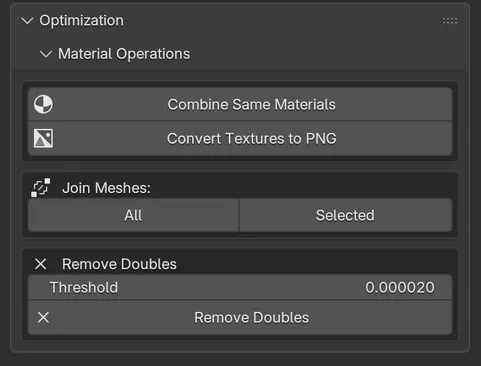
Combine Same Materials
Section titled “Combine Same Materials”Merges materials that are identical: same textures, same colours, same shader values. Faces are moved to one of them and the unused slots are removed. The avatar should look exactly the same afterwards, with fewer draw calls. Cats reports Combined N materials! or No materials combined.
MMD toon and sphere textures are ignored when comparing, so materials that differ only by those are merged too.
Convert Textures to PNG
Section titled “Convert Textures to PNG”Converts every texture that is not already a PNG into one, saved next to the original, and points the material at the new file. This avoids transparency and compatibility problems with formats such as TGA or DDS.
Join Meshes
Section titled “Join Meshes”- All joins every mesh parented to the armature, the same as Join all meshes in Quick Access.
- Selected joins only the meshes you selected in the Outliner.
Both apply transforms, remove Subdivision Surface modifiers, rename the first UV map to UVMap, keep a single Armature modifier and restore the shape key order. When a single mesh remains, it is named Body.
If a mesh shares its data with another object, Cats refuses and asks you to run Object > Relations > Make Single User first.
Remove Doubles
Section titled “Remove Doubles”Merges vertices closer than Threshold (default 0.00002) on the selected meshes, or on the first mesh if none is selected, then deletes loose vertices.
If the mesh has shape keys that could be affected, Cats asks before continuing. Merging vertices that shape keys move apart, such as eyelids or lips, can break those expressions, so check them afterwards.
Bone Merging
Section titled “Bone Merging”Physics bones on hair, skirts and tails add up quickly. This section reduces them.
Merge Bones
Section titled “Merge Bones”-
Pick the mesh in Mesh, if the model has more than one.
-
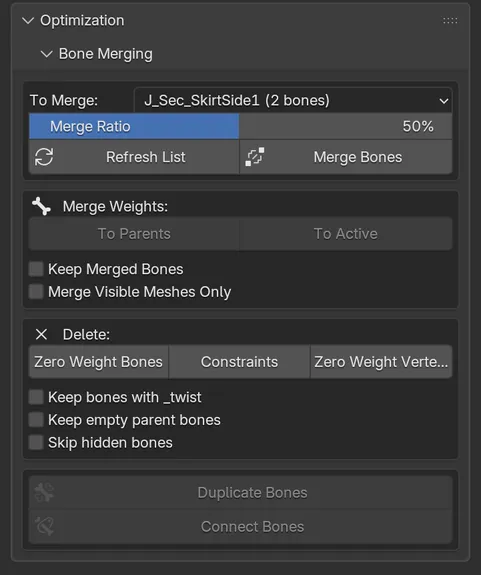
Pick a group in To Merge. Cats lists groups of sibling bones with similar names, such as the strands of a ponytail, and skips main body bones.
-
Set Merge Ratio. At 50%, about every other bone down each chain is merged into its parent. Higher merges more.
-
Click Merge Bones.
Merged bones give their weights to their parent and are deleted. Click Refresh List after you change the armature, since the list is cached.
Merge Weights
Section titled “Merge Weights”Select bones in Edit or Pose mode, then:
- To Parents deletes each selected bone and adds its weights to its nearest unselected parent.
- To Active deletes the selected bones except the active one (the last you clicked) and gives all their weights to it.
Tick Keep Merged Bones to keep the bones after moving their weights, or Merge Visible Meshes Only to leave hidden meshes alone.
Delete
Section titled “Delete”- Zero Weight Bones deletes bones that move no vertices. Main humanoid bones and
Root_bones are kept. The options below the buttons also keep twist bones, empty parents of weighted bones, or hidden bones. - Constraints removes every bone constraint. VRChat does not use them.
- Zero Weight Vertex Groups deletes vertex groups with no weights, on every mesh in the scene.
Duplicate and connect
Section titled “Duplicate and connect”- Duplicate Bones copies the selected bones with their weights, as
<name>_copy. - Connect Bones connects every bone to its parent and straightens their orientation.